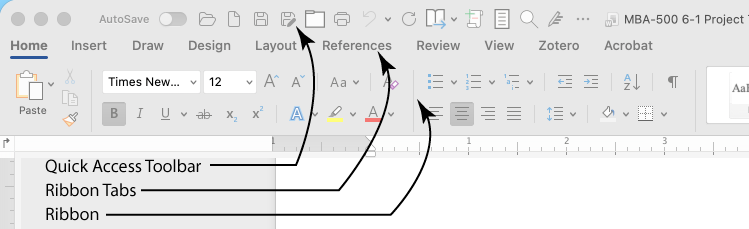
First, some definitions for clarity
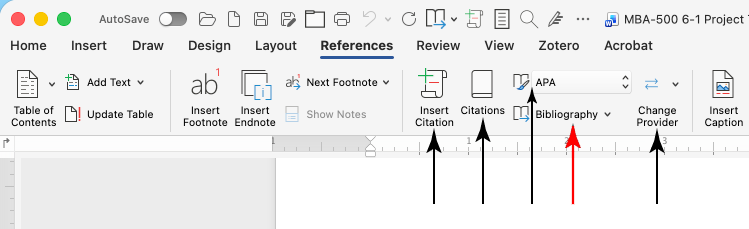
• The first row of tools in Word is the Quick Access Toolbar
• Below that is a row of text called the Ribbon Tabs
• Below that is the Ribbon
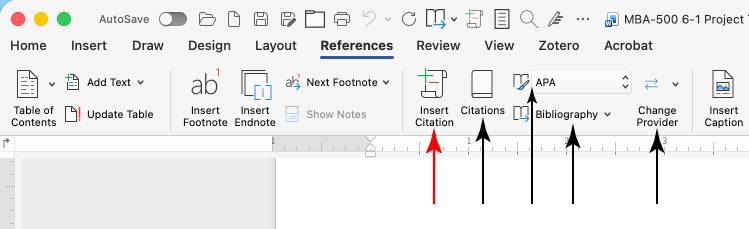
The first option is Insert Citation. If you click it, a Create Source window will pop up.
Select the Type of Source and fill in the information
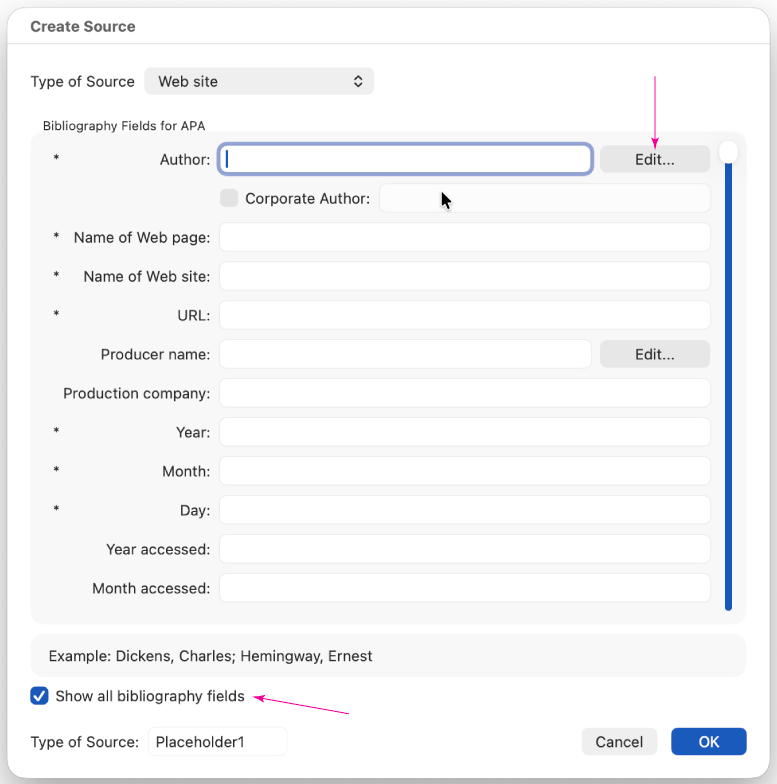
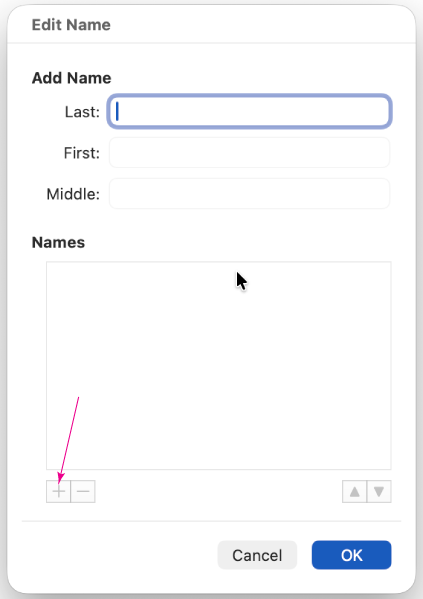
Pro Tip: When entering the Author Name, click the Edit... button and enter the text there. You'll need to click the + in the bottom left of this window after each author's name.
The second option is Citations.
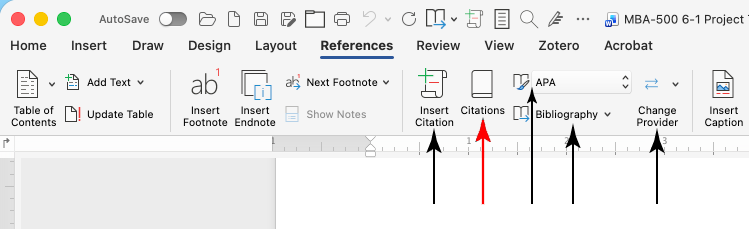
Click that and the Citations Pane will open on the right of the document window.
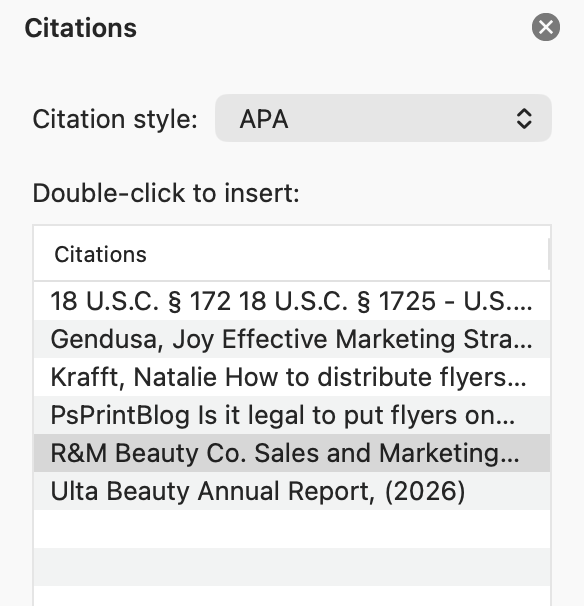
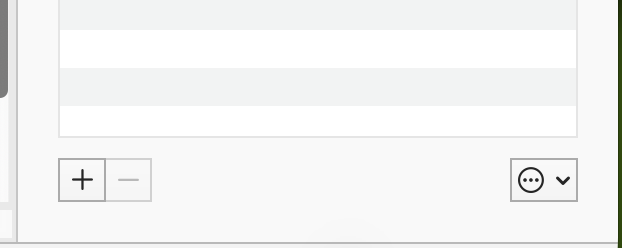
All Citations currently being used in the document are listed there. If you need to cite one of them later in the document, place your cursor in the body of your document where you want the citation to appear, then double-click on the citation in the list. You can also add a new citation by clicking the + button in the lower left corner of the pane to open the Create Source window.
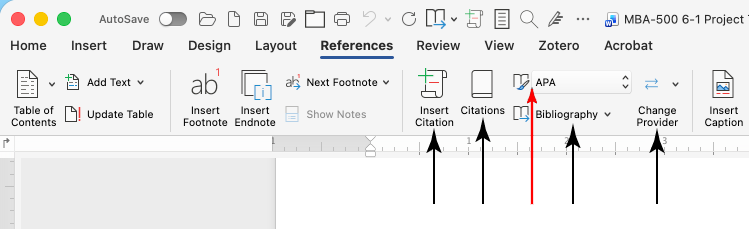
There are two ways to change the Citation Format (APA vs. MLA vs. Chicago, etc.).
In the References Ribbon, to the right of the Citations Pane button is the Bibliography Style drop-down menu. It will probably say APA, but could be set to some other format depending on how Word is configured on your computer. Simply click the menu and change the style to the one you want.
The second method is at the top of the Citations Pane. There is a Citation Style menu at the top of the list of citations.
To insert the Works Cited or References lists at the end of your paper, make sure your cursor is at the end of the document, and click the Bibliography dropdown menu on the Ribbon.
I always choose Works Cited, but it really doesn’t matter which one you pick. The only difference is the header that is generated at the top of the list. I always end up changing it to read “References” anyway.
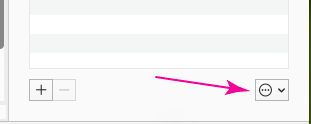
If you're citing sources that you've already used in another paper, you don't have to re-enter all of the information. Click on the Source Manager button in the lower right corner of the Citations Panel.
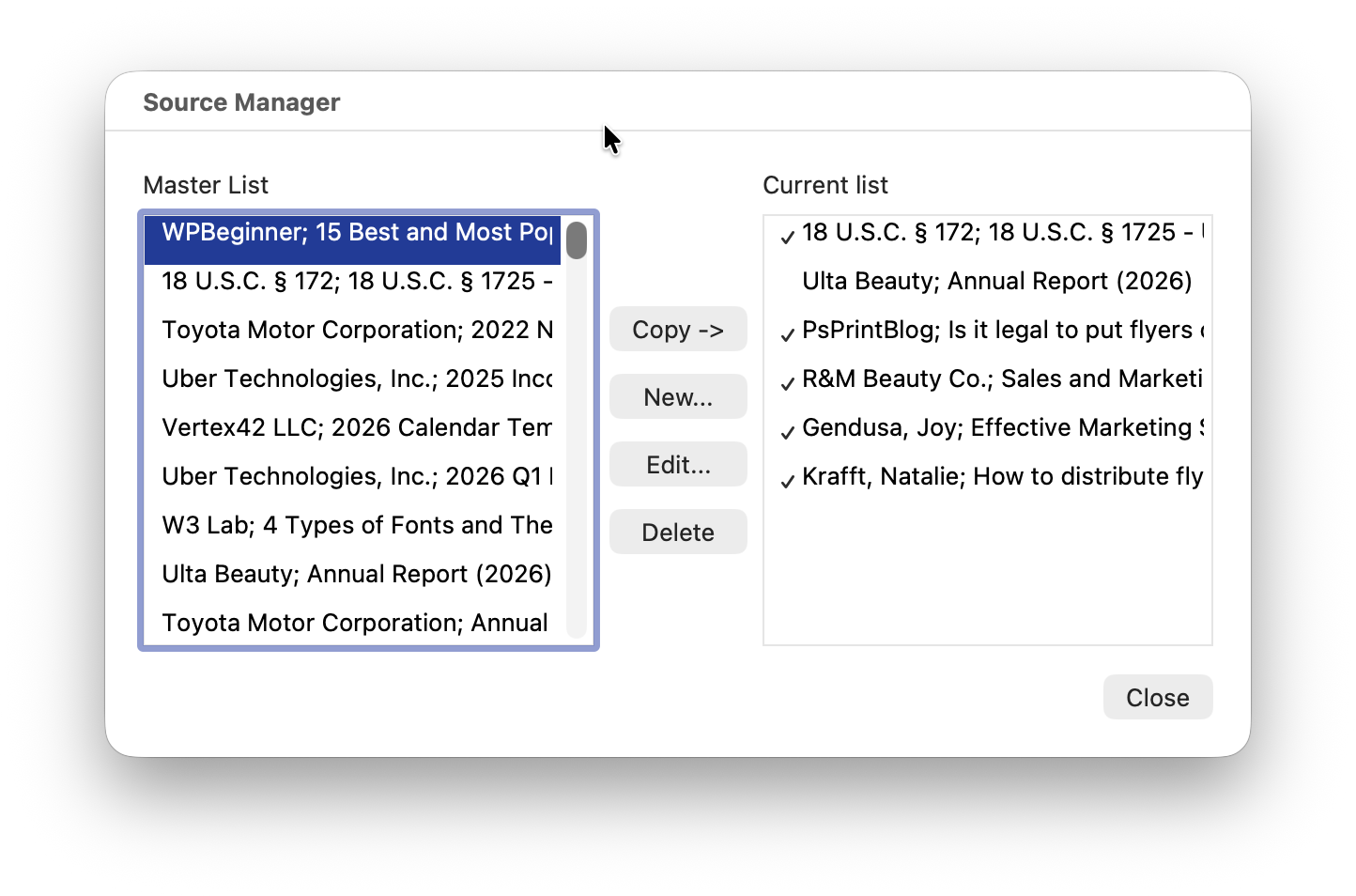
The Citation Source Manager window will open, listing all of the sources you've ever created in Word. Select the source from the Master List on the left and click Copy -> to add it to the Current List of sources. You can also add a new source by clicking New..., edit an existing source by clicking Edit..., or remove a source entirely by clicking Delete.
There are all kinds of Add-ins to help you with Citations.
Click on the Change Provider button on the Ribbon to access a list of popular Add-ins.
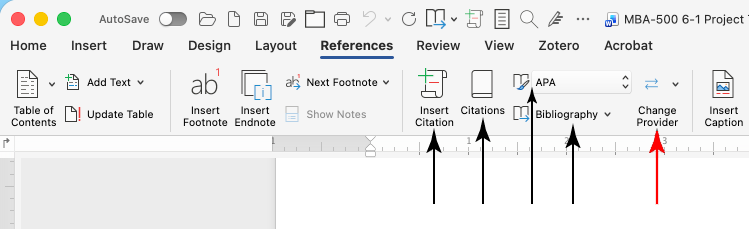
Select the appropriate option in the Popular Citation Add-ins list that opens, and have at it.
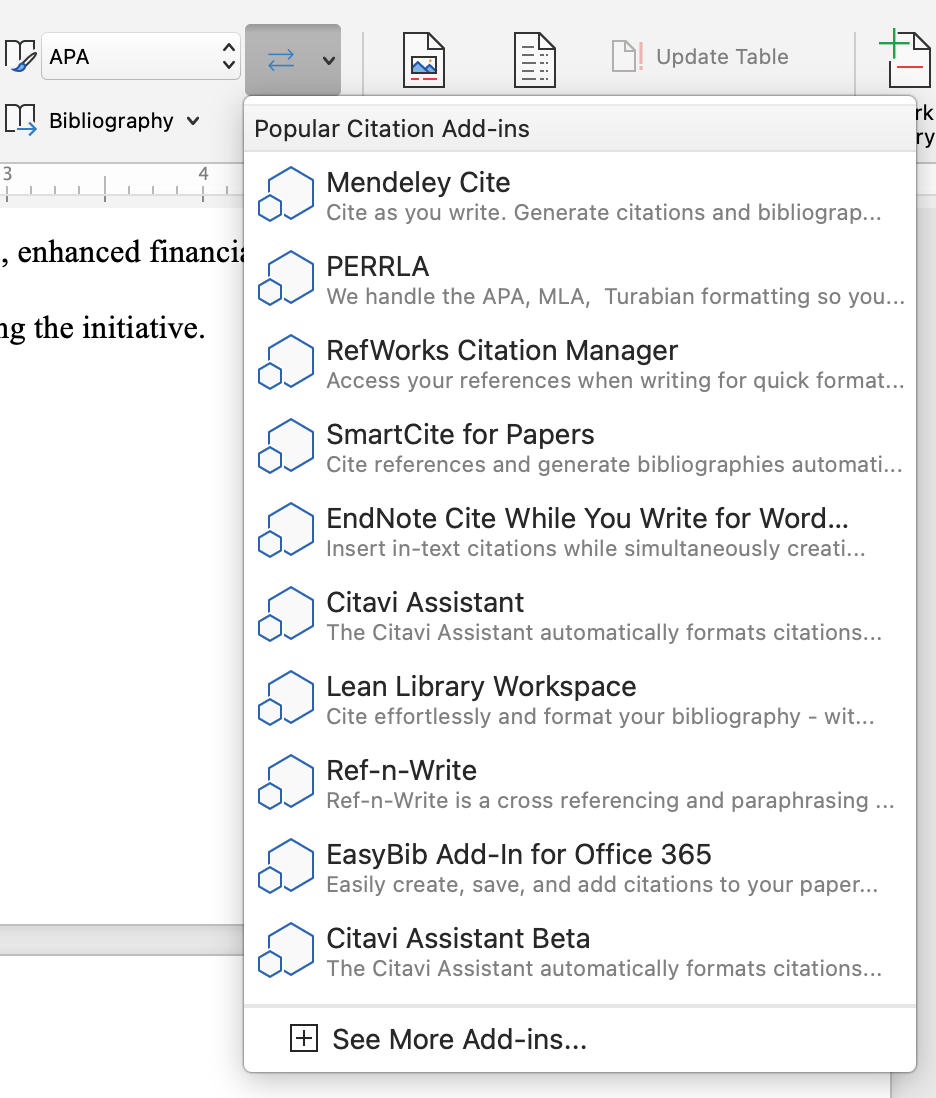
I haven't used any of them, because until earlier this week I was using a version of Word provided by my employer, and they blocked access to most add-ins. I've since changed to the version provided through SNHU, and I haven't checked to see if they block them or not.